Introduction
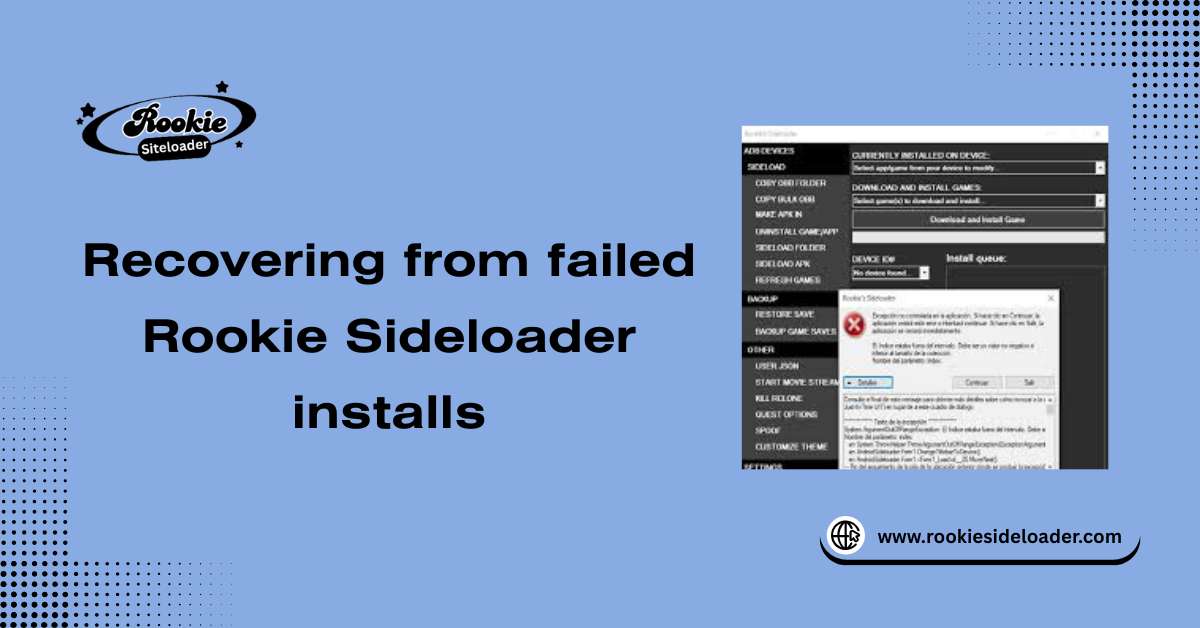
Failed installs in Rookie Sideloader can be frustrating, especially when they interrupt your workflow or corrupt app files. These failures often occur due to unstable connections, corrupted data, insufficient system resources, or conflicts with existing installations. Knowing how to properly recover from a failed install can save time, prevent repeated errors, and get your apps back up and running quickly. In this guide, we’ll walk you through the steps to safely recover from failed Rookie Sideloader installs and restore stability to your setup.
Common Causes of Installation Failures
Common causes of installation failures include temporary drops in USB connection stability, sudden spikes in PC resource usage (CPU/RAM), and conflicts with antivirus or background tasks that interrupt the critical ADB (Android Debug Bridge) file transfer.
How Failed Installs Affect Your Device
A failed install leaves a partial, corrupted application file on the headset’s storage. This file is unusable, wastes space, and must be manually uninstalled before a clean reinstallation can be attempted.
Importance of a Step-by-Step Recovery
Following a step-by-step recovery is crucial to avoid simply repeating the same failure. The process ensures the problem’s source is addressed, the system is clean, and the installation attempt starts on a fresh, stable foundation.
What Recovery from Failed Installs Involves
Recovery involves stabilizing the environment and cleaning up the corruption left by the failed transfer.
Understanding Partial or Corrupted Installs
A partial or corrupted install means only a fraction of the necessary application files (APK/OBB) were transferred. The first step in recovery is removing this corrupted file from the headset.
Differences Between Retry and Full Recovery
A simple retry relies on the hope that the environmental issue has passed. A full recovery involves systematic diagnosis, system cleaning, and a controlled re-attempt to prevent recurrence.
Preparing the System Before Recovery
Before attempting any fix, a methodical diagnosis is required to find the root cause.

- Identifying the failure point is the crucial first step. Did the failure happen during the download (network/disk issue) or during the transfer/installation (USB/permission issue)?
- Checking logs and error messages means reviewing the sideloading tool’s console for explicit errors (e.g., ADB timeout, file access denied) to determine whether the issue is a connection error or a permission/file-system error.
- Determining which step failed clarifies the problem’s location: the network, the local PC, or the USB link.
Identifying the Failure Point
Identifying the failure point is the first step toward the correct solution, determining if the failure originated from a software issue, a network issue, or a physical connection error.
Checking Logs and Error Messages
Checking logs and error messages means reviewing the Rookie Sideloader console or log file for explicit error codes (e.g., ADB timeout, file access denied) to determine whether the issue is a connection or permission error.
Determining Which Step Failed
Determining which step failed involves checking whether the file downloaded successfully but couldn’t be installed, or whether the download itself failed, thereby identifying whether the issue is with the network or the local PC/USB link.
Verifying Device Connection and Detection
Verifying Device Connection and Detection requires confirming the headset is in Developer Mode, checking that the connection indicator in Rookie Sideloader is green, and ensuring the “Allow USB Debugging” prompt has been accepted on the Quest headset.
Pre-Recovery Preparation
Pre-recovery preparation focuses on stabilizing the host PC environment.
- Freeing Up Memory and CPU Resources: Close all unnecessary applications (especially browsers and games) to dedicate maximum memory and CPU resources to the installation process.
- Closing Conflicting Apps and Background Tasks: Temporarily disable demanding background tasks, such as antivirus scans, cloud synchronization, or scheduled backups.
- Backing Up Important Data: While a failed install shouldn’t affect your PC’s files, ensure any custom configs or important documents are backed up before starting intensive file transfers.
Step-by-Step Recovery Process
Follow these steps precisely to maximize the chance of a successful reinstall.
Restarting Rookie Sideloader Safely
Fully close the application and, if necessary, open the command line and run adb kill-server before relaunching the tool. This ensures that Rookie Sideloader can be restarted safely with a clean ADB session.
Retrying the Failed Install
First, manually uninstall the corrupted application from the Quest headset to clear partial files.
Handling Permission and USB Issues
If logs indicate a USB error, switch ports or cables. If a permission error is flagged, ensure Rookie Sideloader is run with administrative rights.
Validating App Integrity After Install
Once the install registers as 100% complete, wait for the tool to confirm the final installation integrity check before disconnecting the headset.
Post-Recovery Verification
Confirm that the application is fully functional before considering the recovery complete.
- Confirming App Launch Success
Confirming App Launch Success on the headset is the definitive sign that the file transfer was complete and non-corrupted.
- Checking Data Integrity
If the install was an update, launch the application and verify that existing save files and game progress (data integrity) are intact.
- Verifying Repo and App List Accuracy
Ensure the sideloading tool’s repository view updates correctly to reflect the newly installed app.
- Monitoring for Recurring Errors
Observe the system for a short period to ensure the previous failure cause (e.g., a connection drop) doesn’t immediately reappear.
Preventive Measures to Avoid Future Failures
Adopt these long-term habits to maximize stability and prevent future issues.
- Using Stable Settings and Safe Defaults: Revert any aggressive performance tweaks (e.g., high buffer sizes) to the tool’s default, stable configuration.
- Maintaining Clean Cache and Logs: Periodically use the tool’s internal cleanup options to delete old temporary files and logs to prevent file corruption and resource pressure.
- Limit Multi-Tasking During Installs: Treat sideloading as a dedicated process; avoid gaming, streaming, or video editing while transfers are in progress.
- Scheduling Install Sessions Strategically: Perform large installations immediately after a fresh PC restart when system resources are at their cleanest and most stable.
Advanced Recovery Tips
For persistent, difficult-to-solve errors, these steps may be necessary.
- Using Logs to Diagnose Persistent Issues: Learn to read the log files yourself. Specific error codes (like “error: device unauthorized”) point directly to the ADB system, guiding the fix.
- Performing Non-Destructive Resets if Needed: If corruption is suspected but you want to save your downloaded files, use the tool’s built-in “Reset Settings” feature to clear the configuration without deleting large app files.
- Handling Large or Complex App Packages: For very large (multi-GB) files, use a high-quality, dedicated USB cable to ensure a stable data and power connection during the long transfer.
- When to Consider a Full Reinstall: Only after all recovery steps have failed, and you suspect that the core Rookie Sideloader application files themselves, not just the settings, have become corrupted.
FAQs
Why do Rookie Sideloader installs fail?
Rookie Sideloader installations fail primarily due to temporary USB issues (connection drops), spikes in host PC resources, or conflicts with background antivirus software.
How can I safely recover from a failed install?
You can recover a failed install safely by first manually uninstalling the corrupted app from the Quest, then restarting Rookie Sideloader safely (with an adb kill-server command), and then retrying the install.
Will I lose app data during recovery?
No, you will not lose app data during recovery. Your save files and game progress remain safe on the headset; only the corrupted installation attempt is removed.
Can USB issues cause install failures?
Yes, USB issues can cause install failures. An unstable power supply or a low-quality cable will interrupt the data transfer, resulting in a partial or corrupted app installation.
How do I retry a partially installed app?
You retry a partially installed app by first manually deleting the corrupted file from the Quest’s app library (uninstalling) and then initiating a fresh installation attempt with the sideloading tool.
Does clearing the cache help recover installs?
Yes, clearing the cache helps recover installs by removing corrupted download index files and temporary logs that might be preventing the application from starting a clean transfer.
When should I do a complete reinstall instead?
You should only do a complete reinstall after all recovery and non-destructive reset attempts have failed, indicating the issue lies within the tool’s core program files.
Can repeated failures damage my device?
No, repeated failures will not damage your device. They only cause temporary storage corruption (the partial app file), which is resolved by a simple manual uninstallation.
Conclusion
While installation failures are inevitable in sideloading, the downtime they cause is entirely manageable. By diagnosing the root cause and following a rigorous protocol, users can quickly stabilize their environment.
The key is the discipline of pre-recovery preparation and the step-by-step recovery process, which ensures you recover without losing data or stability, making the entire sideloading experience efficient and reliable.
Latest Post: