Introduction
Managing content across multiple VR headsets (such as a Quest 2 and a Quest 3) using a single instance of Rookie Sideloader requires a strict protocol. The ADB (Android Debug Bridge) system, which the tool relies on, can become easily confused when multiple devices are introduced, leading to installation errors or corruption.
Why Multi-Device Use Needs Extra Care
Multi-Device Use Needs Extra Care stems from the core technical limitation of ADB: it struggles to simultaneously distinguish and route commands to multiple identical devices without explicit serial targeting, which sideloading tools often don’t automatically handle for every action.
Common Risks When Switching Devices
Common risks when switching devices include stale device references (the PC remembers Device A when Device B is plugged in), failed installs due to connection drops, and mixing temporary cache files intended for different hardware models.
Benefits of a Conflict-Free Setup
The benefits of a conflict-free setup include fast, reliable installation, no need for constant headset or PC reboots, and assurance that each device’s unique game data remains intact.
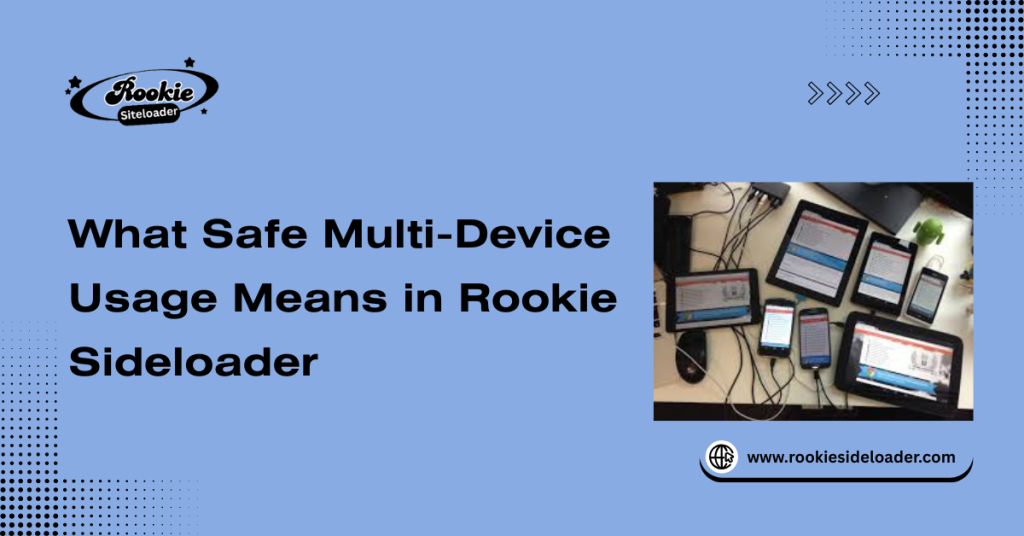
What Safe Multi-Device Usage Means in Rookie Sideloader
Safe usage means treating each connection session as entirely independent and ensuring the previous session is fully terminated before the next one begins.
How Rookie Sideloader Identifies Devices
A rookie sideloads using the Android Debug Bridge (ADB) to detect devices. Each connected headset is assigned a unique hardware serial number, which the PC uses to differentiate them.
Why Conflicts Occur Between Devices
Conflicts occur between devices when the ADB server (a background process) detects two active serial numbers, leading to an error that prevents any commands from being executed, often reported as “more than one device/emulator.”
Understanding Session Separation
The methodical process of disconnecting the current device, manually stopping the ADB process on the PC, and then connecting the new device to force a clean, isolated connection startup.
Preparing Rookie Sideloader for Multiple Devices
To ensure stability when switching, follow these preparation steps before connecting any headset.
- Clean Environment Before Each Connection
- Fully close Rookie Sideloader and any other ADB-dependent software (like SideQuest).
- Open your command line (CMD or PowerShell) and run the command adb kill-server. This ensures a clean environment before each connection by shutting down all lingering ADB background processes.
- Organizing Device Profiles
- While Rookie Sideloader doesn’t have profiles, it’s best practice to label your headsets clearly (e.g., Quest-Gaming, Quest-Fitness) to avoid accidental installs.
- Avoiding Overlapping Sessions
- Physically disconnect all other USB-connected Android/VR devices before connecting the one you intend to use. This is the surest way to avoid overlapping sessions.
Managing Device Connections Without Conflicts
This is the core operational rule when working with multiple headsets.
- One-Device-At-a-Time Best Practice: Mandatory. Ensure one headset is fully installed, verified, and disconnected before plugging in the next.
- USB Switching Safely: When switching, plug the new device into the same USB port used by the previous one (if possible) and check the device’s status inside Rookie Sideloader.
- Preventing ADB Confusion: After disconnecting Device A, run adb kill-server (as mentioned above) before connecting Device B to wipe the temporary device memory and stop the “more than one device” error.
Handling App Installs Across Different Devices
The download files can be reused, but the installation process must be treated as unique to the connected device.
Keeping Install States Separate
Since installation includes device-specific configuration steps, never trust a failed install on Device A to be resolved on Device B. Start the install from scratch.
Avoiding Cross-Device Cache Issues
The local download cache (the APKs stored on your PC) is safe to share. However, the temporary working files created during the transfer should be allowed to be deleted/overwritten by the tool with each new install.
Safe App Transfer Rules
Always confirm that the correct device model (e.g., Quest 3) is displayed in Rookie Sideloader before clicking the “Install” button.
Profile and Data Isolation Strategy
- Separating App Data Per Device: Meta Quest OS handles this. Your save files are tied to the headset’s profile, not the sideloading tool on the PC.
- Handling Temporary Files: If you encounter repeated errors when switching, clear Rookie Sideloader’s cache in its settings to remove corrupted temporary files that might be lingering from the previous session.
- Preventing Shared State Errors: ADB connection issues are the root cause. If the device is not detected clearly, do not proceed with installation.
Best Practices for Long-Term Multi-Device Stability
- Routine Cleanup Habits: Make running adb kill-server a routine part of your cleanup before connecting a new device.
- Safe Restart Workflow: If a connection is lost, follow the Safe Restart Workflow: Disconnect Device > Close Rookie Sideloader > Run adb kill-server > Re-launch Rookie Sideloader > Reconnect Device.
- Monitoring Device Recognition: Always confirm the connection indicator (usually green) on the Rookie Sideloader to ensure the transfer begins successfully.
Common Conflict Scenarios and How to Avoid Them
| Mixed Device Install Queues | Error: “More than one device/emulator” when clicking Install. | Enforce the One-Device-At-a-Time Best Practice by physically disconnecting all but one headset. |
| Stale Device References | Rookie Sideloader shows “No Device Found” even though the headset is plugged in and authorized. | Run adb kill-server in the command line after disconnecting the previous device to clear the reference. |
| Permission Carryover Issues | The new device does not show the “Allow USB Debugging” prompt. | On the headset, go to Developer Options and select “Revoke USB debugging authorizations,” then reconnect to trigger the prompt. |
Frequently Asked Questions
Can the Rookie Sideloader be used safely on multiple devices?
Yes, Rookie Sideloader can be used safely on multiple devices, but you must connect only one device at a time and properly reset the ADB connection in between.
Why does Rookie Sideloader confuse connected devices?
Rookie Sideloader confuses connected devices because the underlying ADB system gets conflicting serial numbers when multiple headsets are plugged in, causing it to halt commands.
Is it safe to switch devices without restarting the app?
No, it is not safe to switch devices without restarting the app. The safest method is to close the Rookie Sideloader and run adb kill-server before plugging in the new device.
How can I prevent app installs from failing on another device?
To prevent app installs from failing on another device, ensure you perform a clean environment before each connection to clear any corrupted session data left by the previous device.
Does Rookie Sideloader save data per device?
No, Rookie Sideloader does not save data per device. The app’s core data (save files, progress) is stored on the individual headset, managed by the headset’s operating system.
What causes ADB conflicts in multi-device setups?
ADB conflicts in multi-device setups occur when multiple ADB-authorized devices are active simultaneously, preventing the sideloading tool from determining which headset to target.
Should I disconnect one device before connecting another?
Yes, you should disconnect one device before connecting another to implement the One-Device-At-a-Time Best Practice and successfully reset the ADB connection.
How do I safely reset device detection?
To safely reset device detection, disconnect the headset, close Rookie Sideloader, and run the command adb kill-server in a command-line window.
Conclusion
The key to successfully managing several headsets with a single instance of Rookie Sideloader lies not in the software’s advanced features but in adhering to a strict, manual disconnection-and-cleanup protocol.
Stay Organized, Stay Stable
By committing to the Safe Restart Workflow and using the adb kill-server command as a routine cleanup when switching headsets, you can achieve reliable, conflict-free multi-device use with Rookie Sideloader.
Latest Post: