


Introduction
For users relying on Rookie Sideloader for sideloading applications, encountering the “Device Not Detected” error is a common but fixable obstacle. This device recognition failure typically occurs because the software handshake between the PC and the headset is blocked, often due to issues with USB drivers, the USB cable, or incorrect device connection settings. Addressing these elements systematically is key to resolving the frequent connection problems that hinder new users.
Why Connection Problems Are Common for New Users
Connection problems are frequent because sideloading relies on low-level developer protocols (ADB). New users often overlook crucial steps, such as enabling USB debugging or using a data-capable cable, which can lead to immediate device recognition failure. Successful troubleshooting requires a methodical check of both hardware and software configuration.
What Causes a Rookie Sideloader to Not Detect a Device?
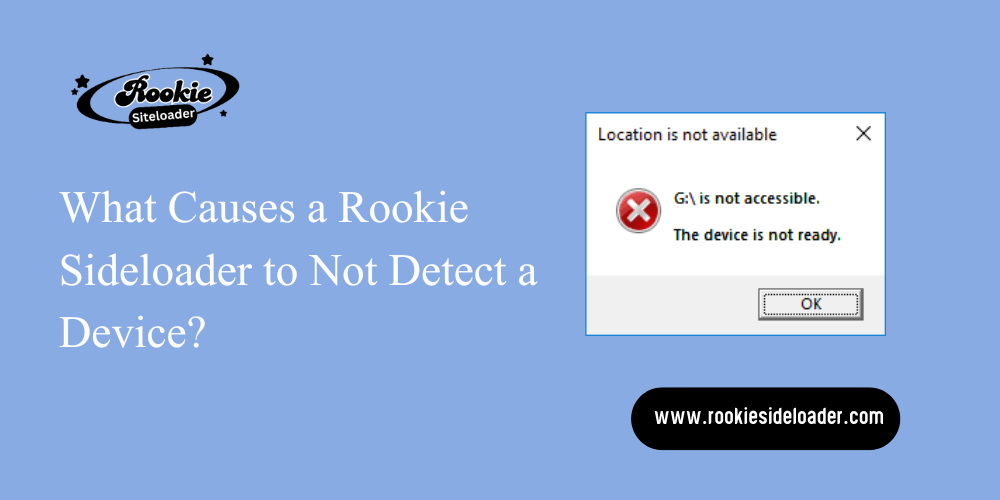
The cause is almost always one of three factors: incorrect or missing USB drivers on the Windows PC, a physically inadequate USB cable, or the headset not being set to the proper device connection settings required for developer access. Addressing these elements systematically is the key to resolving sideloading errors.
How Rookie Sideloader Communicates With Devices
Rookie Sideloader utilises the Android Debug Bridge (ADB) protocol to communicate with and transfer files to the headset. This protocol requires specialised USB drivers installed on the host PC to correctly translate data between the Windows operating system and the Android-based device.
Role of USB Drivers and Connection Modes
Rookie Sideloader relies on specialised USB drivers installed on the host PC to correctly translate data between Windows and the Android-based device. If the correct PC device drivers are absent or corrupted, the sideloading tool cannot recognise the device, resulting in device recognition failure.
Common Setup Mistakes That Block Detection
Many new users encounter issues right away because they fail to perform the initial handshake: either not explicitly allowing USB debugging on the headset or attempting to use a USB port that lacks sufficient power, leading to immediate connection problems.
USB Driver Issues That Prevent Device Detection
Missing or Outdated USB Drivers
A reliable connection starts with the device’s USB driver. If these drivers are either missing or outdated and predate the sideloading tool’s required protocol version, the communication handshake will fail. This is the primary reason why the Rookie Sideloader is not detecting my device.
Incorrect Driver Installation on Windows
Often, the generic drivers Windows installs are insufficient. Users need the specific ADB interface driver package, usually provided by the device manufacturer. If the driver installation was interrupted or misapplied, the device will appear as an unknown or generic device in the Windows Device Manager, indicating an incorrect driver installation.
Conflicts With Existing ADB or Device Drivers
Having multiple sideloading application processes or other Android tools (like older versions of SideQuest or mobile ADB managers) running can install conflicting versions of ADB drivers. These conflicts can prevent the sideloading tool from correctly initialising the driver required for the current session, leading to pervasive sideloading errors.
USB Cable and Port Problems
Importance of Using a Data-Capable USB Cable
A common oversight is assuming that all USB cables are the same. For sideloading, you must use a data-capable USB cable. Cheap, uncertified wires, or those marked explicitly for high-speed charging, often lack the internal wiring needed to reliably transmit data packets, which can cause USB cable detection issues.
Charging-Only Cables vs Data Cables
Charging-only cables supply power but lack data-transfer lines, meaning the headset receives power but remains invisible to the PC’s operating system. Always use a certified USB cable specifically rated for high-speed data transfer to ensure a solid physical connection and prevent frustrating connection problems.
USB Port Compatibility and Power Issues
Try connecting to different USB ports. Ports on the front of a PC or those connected via an unpowered hub may lack sufficient power for both charging and data transmission, leading to an unstable connection. Prioritise direct connections to high-speed ports (USB 3.0 or higher) located on the rear of the motherboard.
Headset Mode and Device Connection Settings
Why Headset Mode Affects Device Recognition
When the headset connects to a PC, it defaults to a safe mode, often optimised for charging. This default headset mode prevents unauthorised file access, directly blocking the sideloading tool until the user explicitly changes the setting.
Switching From Charging Mode to File Transfer
After connecting the headset, you must manually confirm the connection type. This typically involves putting the headset on and selecting Switch From Charging Mode to File Transfer or PTP mode. This action unlocks the device’s internal file system for the PC, a necessary precursor to enabling debug access.
Allowing USB Debugging and Device Authorisation
The final and most critical step is allowing USB Debugging. This prompt appears inside the headset when the device is first connected to a PC with the correct ADB drivers installed. If the user misses this prompt or fails to check the “Always allow from this computer” box, the sideloading tool will fail to connect, resulting in persistent device recognition issues. This is the key to resolving many sideloading errors.
System and Software Checks
Updating Rookie Sideloader to Latest Version
The developers regularly update the sideloading tool to include fixes for OS and ADB protocol updates. An outdated version of Rookie Sideloader might be using deprecated commands, preventing the application from detecting newer firmware. Keeping drivers and tools up to date is a crucial form of prevention.
Restarting ADB and Background Services
If you suspect conflicts with existing ADB or other background services, you must perform a refresh. Open the Windows Task Manager and end any adb.exe processes. Then, restart the sideloading tool. This forces the program to cleanly reinitialise the ADB services.
Checking Device Visibility in Device Manager
To verify driver installation, open the Windows Device Manager. When the device is connected, look under “Android Device” or “Universal Serial Bus devices.” If the device is listed as “ADB Interface” or a manufacturer-specific device, your PC device drivers are likely correct. If it shows up with a yellow exclamation mark or as an “Unknown Device,” the problem is an incorrect driver installation.
How to Fix Rookie Sideloader Detection Issues
Reinstalling USB Drivers Correctly
The most effective fix for persistent sideloading errors is to reinstall USB drivers correctly. First, uninstall any generic or conflicting drivers via the Device Manager. Then, download the official ADB interface driver package from the manufacturer’s website and install it while the device is unplugged. Reboot and then reconnect the device.
Changing USB Connection Mode Manually
If the automatic prompt fails, manually navigate the device’s settings (if possible) to switch the device’s connection mode from charging to File Transfer or PTP before connecting the cable to the PC.
Testing With Different Cables and Ports
Isolate the hardware issue by testing with different cables and ports. Always use a certified, high-quality data-capable USB cable in a high-speed USB port compatibility slot (USB 3.0 or higher).
Rebooting the Device and PC for a Fresh Connection
The “Turn it off and on again” approach is highly effective. Rebooting the device and PC for a fresh connection clears any temporary software conflicts, restarts all background services, and forces the system to re-initialise the USB connection from scratch.
Prevention Tips for Future Connection Errors
Keeping Drivers and Tools Updated
Make it a habit of keeping drivers and tools updated. Always run the latest versions of Rookie Sideloader and your device’s official USB drivers to maintain compatibility with new operating system patches.
Using Certified USB-Cables
Invest in certified USB cables and label them clearly as “Data Cable” to avoid confusing them with charging-only cables. This prevents the most basic USB cable detection problem.
Verifying Connection Mode Before Launch
Before starting the sideloading tool, quickly verify that the headset mode is correctly configured for USB debugging and that the device’s connection settings are authorized for data transfer. This simple check eliminates the most common connection problems before they start.
Frequently Asked Questions
Why is Rookie Sideloader not detecting my device?
The most common reasons the Rookie Sideloader fails to detect my device are missing or incorrect USB drivers, using a faulty or charging-only cable, or the headset not enabling USB debugging (resulting in device recognition failure).
Do I need special USB drivers for Rookie Sideloader?
Yes, you need the specialised ADB (Android Debug Bridge) interface driver on the PC to communicate with the headset. Generic Windows drivers are often insufficient for proper sideloading.
Can a USB cable cause detection problems?
Yes, a USB cable detection problem is widespread, particularly with charging-only cables that cannot transmit data, leading to instant connection issues even when the cable is plugged in.
What USB mode should be selected for sideloading?
You should select File Transfer or PTP mode (depending on the device) on the headset when prompted, and most importantly, allow USB debugging and authorisation.
Does headset mode block device detection?
If the headset mode defaults to charging, it will block data access and cause device recognition failure. You must actively Switch From Charging Mode to File Transfer to enable sideloading.
How do I know if my device is connected correctly?
Check the Windows Device Manager; the device should be listed under “Android Device” or a similar category with “ADB Interface” and no yellow exclamation mark, confirming the PC device drivers are active.
Can outdated drivers cause sideloading errors?
Yes, outdated drivers often lack the protocol support required for modern sideloading, leading to persistent sideloading errors and device detection issues.
Conclusion
Successfully fixing Rookie Sideloader device detection issues depends entirely on a meticulous, step-by-step review of the connection chain. The root of connection problems typically lies in three areas: ensuring the PC has the correct ADB interface driver installed (fixing missing or outdated USB drivers), verifying the physical connection with a data-capable USB cable and a reliable USB port compatibility slot, and confirming the headset mode is set to allow USB debugging and file transfer.
By systematically addressing these factors, users can eliminate sideloading errors, ensure device recognition failures are resolved, and establish a stable sideloading environment for all future application installations.
Latest Post:











